Agentic Mode
In this section
Agentic Mode is Algho's new way to create and manage Assistants, called Agents in this version.
An Agent uses the latest technologies in request analysis and in choosing the best tool to use to answer the user.
Before continuing, it is useful to understand the differences between an Assistant and an Agent.
Agent vs Assistant
The main difference between an Algho Assistant and an Algho Agent lies in how they use the tools available to them.
An Algho Assistant has a linear approach to choosing the tools at its disposal.
Taking as an example an Assistant with access to a Knowledge Base, to Smart Document Access and to AI Gen, it would use the first tool of its pipeline that provides an answer, without checking the subsequent tools.
An Algho Agent, on the other hand, adopts a selective and contextual approach. Before making a call, it analyzes the user's request and identifies the most relevant tools to answer effectively.
Tools are therefore not queried one at a time according to a predefined order, nor is the first available answer used automatically.
Creating an Agent
To create a new Agent, select Create Agents in the left menu and then the Agent option in the section that opens.
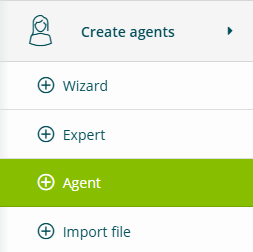
Creating an Agent consists of the following phases: Basic Information, Bundle (optional) and Tool Configuration.
Basic Information
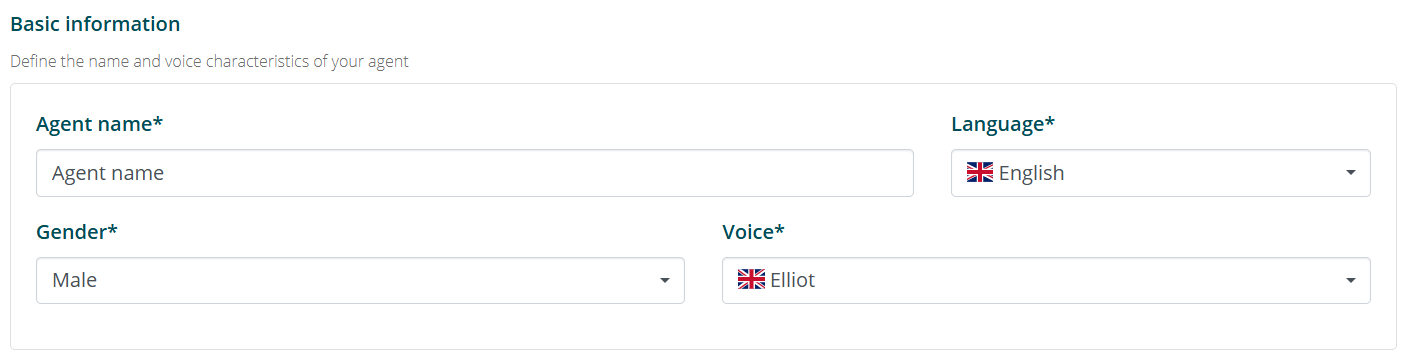
In the Basic Information section you need to configure the Agent's identity:
- Name: assign a name to the Agent;
- Language: select the default language;
- Gender: choose a gender between male and female;
- Voice: choose one of the available voices.
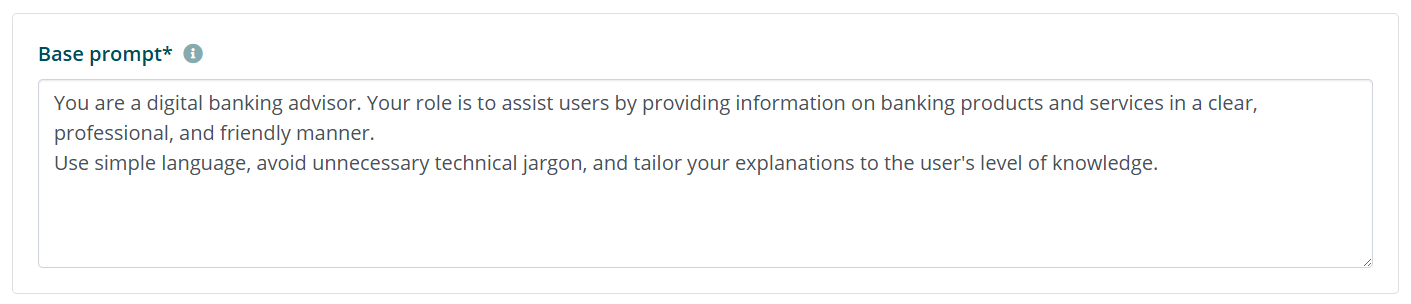
At this point you need to enter the Agent's base prompt. The base prompt describes the Agent's function and the tone to use in answers: it is only meant to define a role and a communication style. There is no need to enter operational logic, predefined answers or behavioral instructions.
Below is an example of a base prompt for an Agent dedicated to banking services:
You are a digital banking consultant.
Your role is to assist users by providing information on banking
products and services in a clear, professional, and friendly way.
Use simple language, avoid unnecessary jargon, and adapt
explanations to the user's level of knowledge.
The base prompt can be modified at a later time.
It is also possible to enter a welcome message, i.e. the default message with which users are greeted the first time they access the chat.

Bundle
In the Bundle section you can select the bundle to activate, if included in your account or license.
If no bundle is available, you can proceed without selecting anything.
Tool Configuration
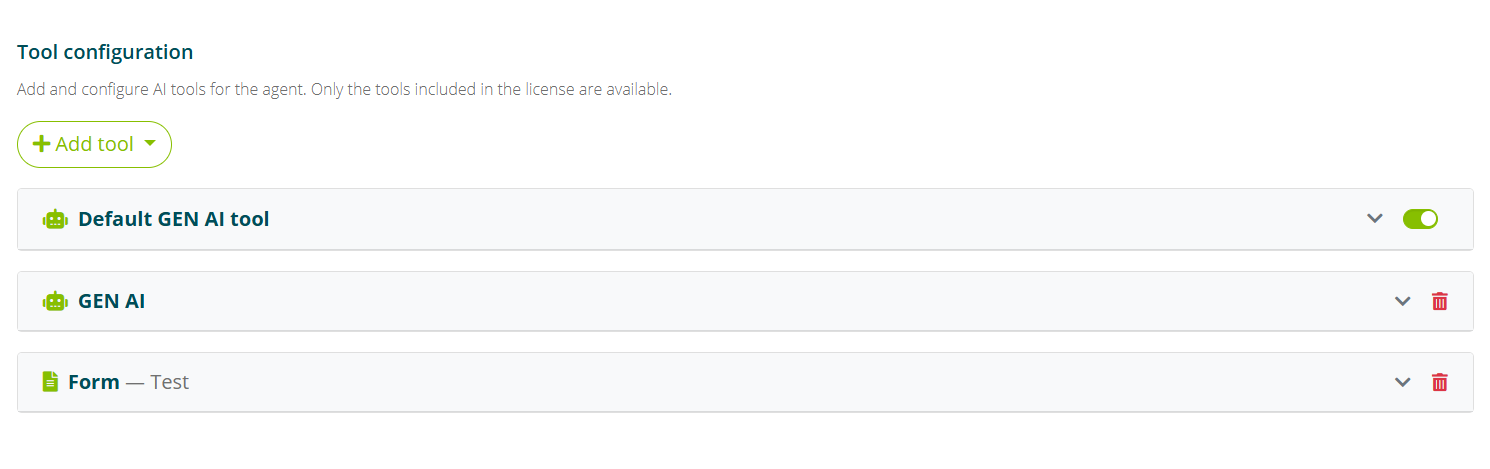
Tools are the Agent's knowledge sources.
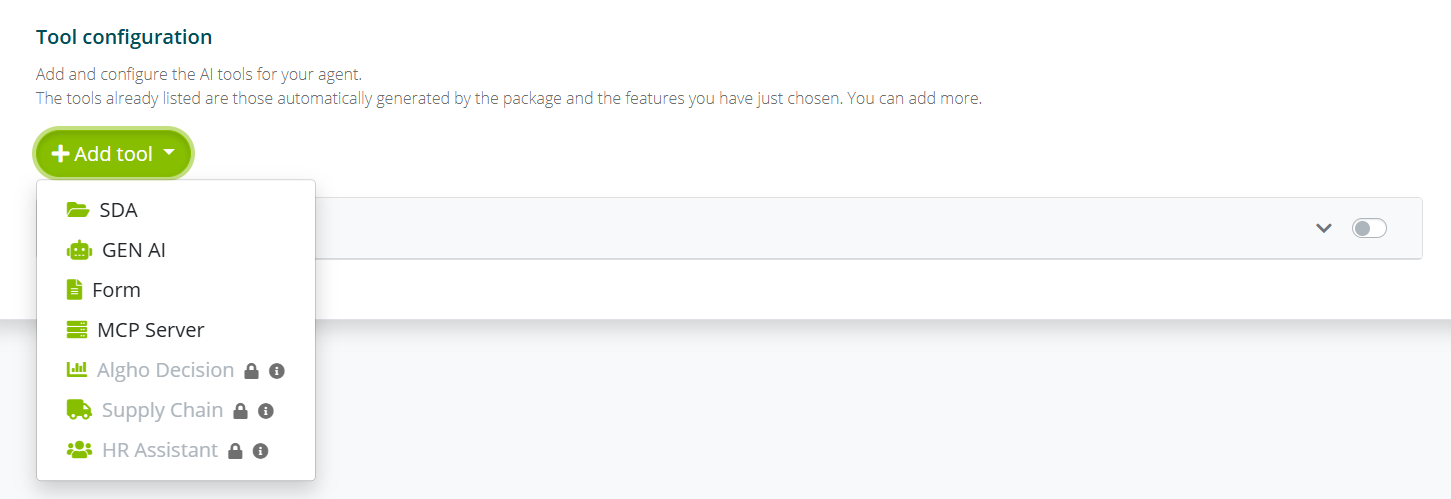
For each tool you need to configure the following elements:
- Trigger prompt: the description of the requests or topics for which the Agent must call that tool. For example, if the documentation is the manual of a specific product, the tool must be called when the user asks questions about usage, troubleshooting issues or similar;
- Positive examples: example requests that tell the Agent when to call the tool;
- Negative examples: example requests that tell the Agent when not to call the tool.
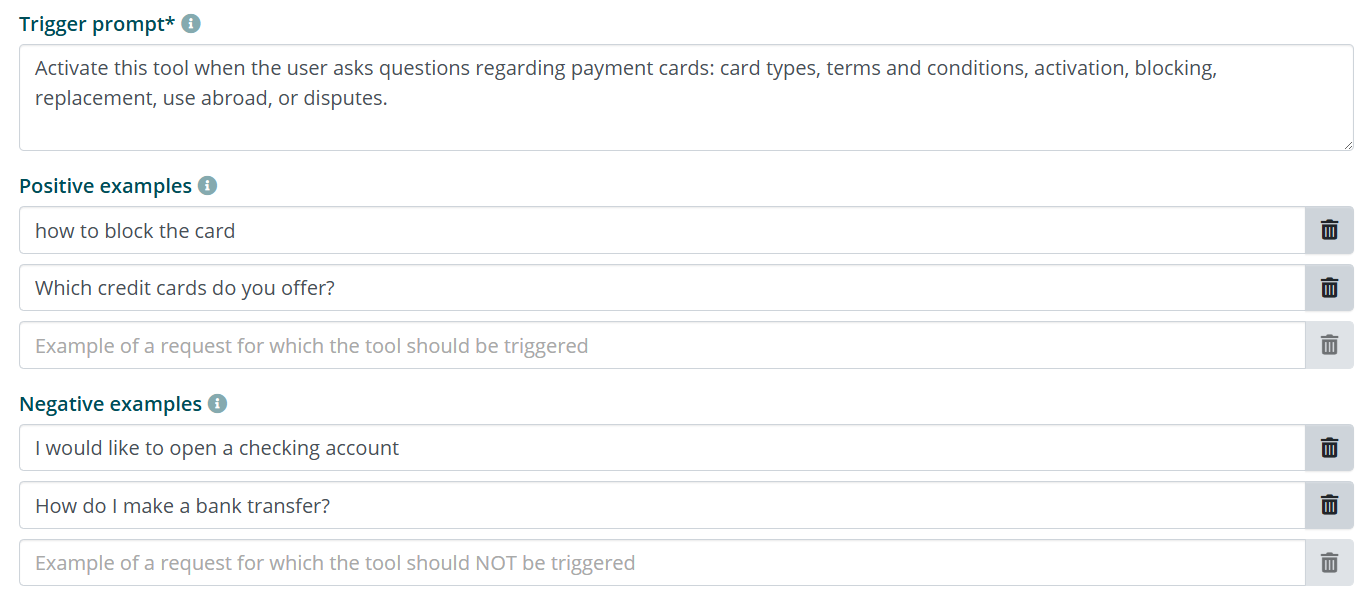
Below is an example of how to fill in the trigger prompt, positive examples and negative examples, for an SDA tool linked to payment card documentation:
Trigger prompt:
Activate this tool when the user asks questions about payment
cards: card types, fees and conditions, activation,
blocking, replacement, use abroad, or disputes.
Positive examples:
- how to block the card
- what credit cards do you offer
- my card has been cloned
- can I use the card abroad
Negative examples:
- I would like to open a current account
- how do I make a bank transfer
- what are the interest rates
The guidelines on trigger prompts, positive examples and negative examples apply to all tools.
Default AI Gen tool
The default AI Gen tool is not mandatory: it is already present in the tool list and it is enough to enable the related checkbox.
It is used when the user's questions are generic and do not match any other tool, such as greetings or pleasantries. It is essentially the tool to use when the user is simply conversing with the Agent, without asking questions or making requests related to the Agent's topic.
Enabling the default AI Gen tool is convenient because it requires no setup. The same behavior can still be achieved with the AI Gen tool, by indicating in the prompt that it can converse with the end user.
SDA Tool
The SDA tool queries the documentation uploaded to Smart Document Access.
In addition to the common configuration, you need to link the folder and subfolder of Smart Document Access from which to access the documentation. Folder and subfolder must already have been created within Smart Document Access (see Document Management).
In the advanced settings of the SDA tool you can enter the standard SDA settings, available in the dedicated section (see Connecting an assistant to documentation).

Proactive Search is not available for the SDA tool.
AI Gen Tool
The AI Gen tool makes a call to an LLM model without a data source or reference documentation.
In addition to trigger prompt and examples, you need to enter a prompt. Unlike the SDA tool, in fact, since there is no documentation to refer to, the prompt provided to the AI Gen tool is what allows it to generate its answers.
Below is an example of a prompt for the AI Gen tool:
You are an assistant specialized in banking products.
Provide clear and concise answers about current accounts, payment
cards, investments, and digital banking services.
When the user asks a specific question, answer in
detail. When the question is generic, answer
concisely and suggest relevant topics.
Do not make up information. If you do not have enough data,
tell the user to contact an operator.
Form Tool
Forms are Algho's conversational forms, useful for collecting information from the user or for connecting to an external software you own, for example a CRM to check the status of an order or a purchase, or to collect information about the customer (see Conversational forms).
In addition to trigger prompt and examples, you need to associate the corresponding conversational form with the tool. The form must already have been created in Algho.
It is possible to create multiple Form tools, by entering a trigger for each form you intend to launch.
Below is an example structure for the trigger prompts of Form tools. Each block corresponds to a configured Form tool; the conditions determine when the Agent selects that tool.
## Current account
You MUST activate this form ONLY and EXCLUSIVELY when ALL of these
conditions hold:
- the user has requested information about the current account.
You MUST NOT activate this form if the user's request concerns
cards, investments, or loans.
## Payment cards
You MUST activate this form ONLY and EXCLUSIVELY when ALL of these
conditions hold:
- the user has requested information about payment cards.
You MUST NOT activate this form if the request concerns accounts,
investments, or loans.
## Investments
You MUST activate this form ONLY and EXCLUSIVELY when ALL of these
conditions hold:
- the user has requested information about investments or
  financial products.
You MUST NOT activate this form if the request concerns accounts or
payment cards.
The phrases "similar to..." in the prompts refer to the meaning of the user's request, not to an exact text comparison. The Agent evaluates whether the content of the request matches the indicated one.
The tools you entered can be modified or added at a later time as well.
Once the tool configuration is complete, you move to the summary of the creation, which shows a recap of what has been set. If the summary is correct, select Create Agent. At the end of the creation you are taken to the assistants archive.
Editing an Agent
To edit an Agent you need to access its Settings.
This section is accessible by opening the assistant's menu (the three dots at the top right of the card) and selecting Settings.
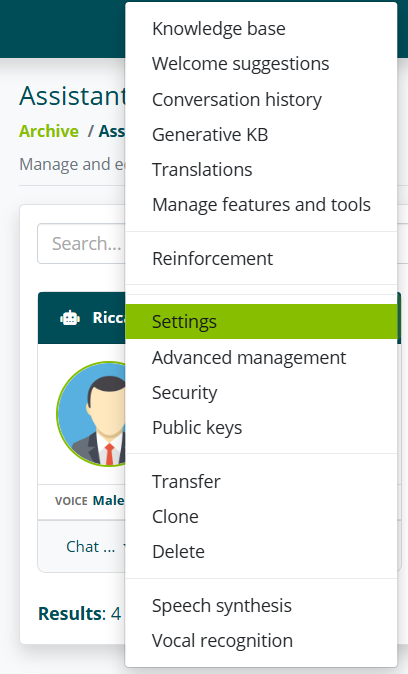
An Agent's settings include all the settings of an Assistant (see Assistant Settings) plus some specific settings.
Base Prompt
In the first section you can modify the Base Prompt.
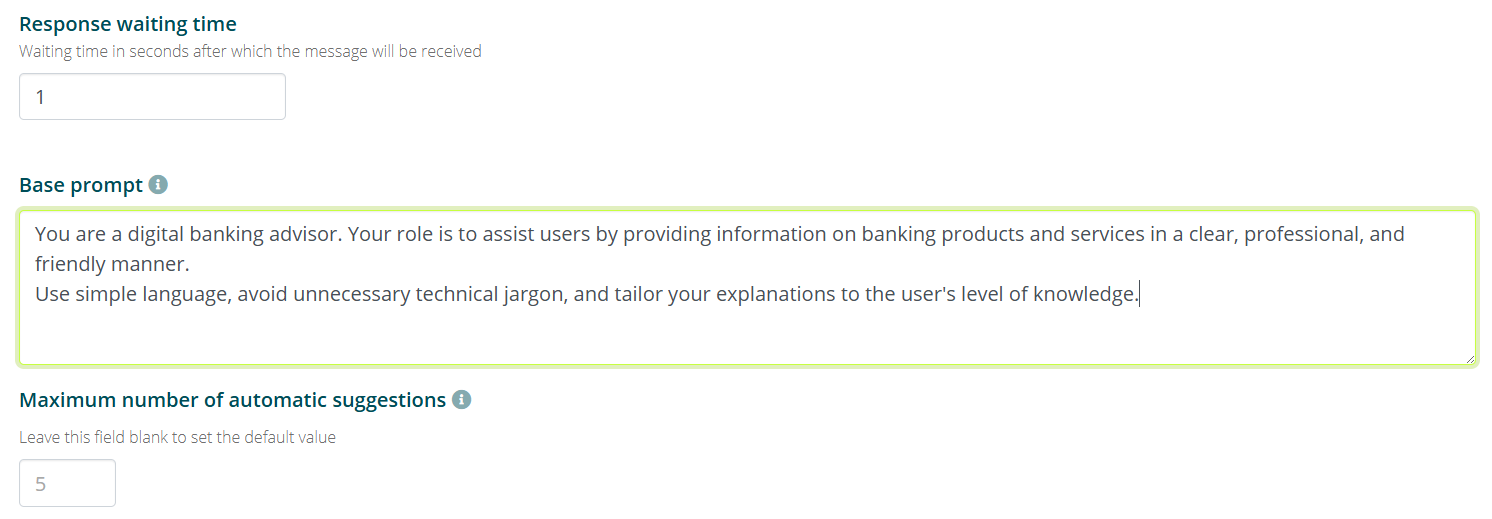
The base prompt describes the Agent's function and the tone to use in answers. For details and a compilation example, see the Agent Creation section.
Tools
In the Tools section you can modify the tools already configured and add new ones (see Tool Configuration)

Post actions
In the Post actions section you can set form tools to be used right after another tool's answer (with the exception of a form tool).

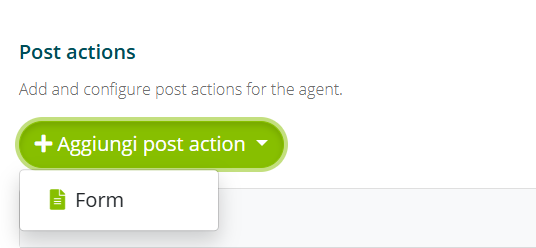
For example, you could set a form tool for order verification, but only after the Agent has explained to the user how they can check on their own (for example with a SDA Tool answer).
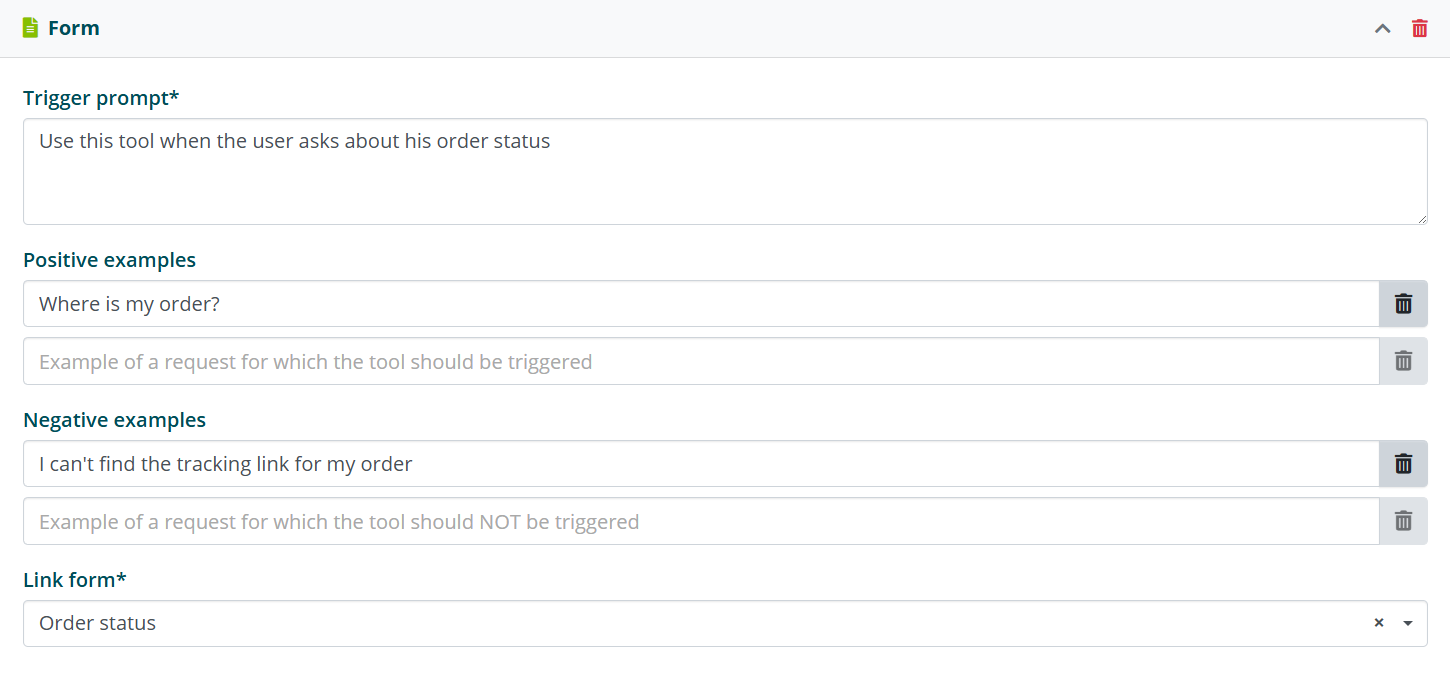
If you set a form tool as a post action with the same trigger prompt as a regular form tool, the Agent will choose only one of these two options.