Calendar
In this section
After logging in to Booking, the Calendar shows the appointments and the configured availability.
Calendar views
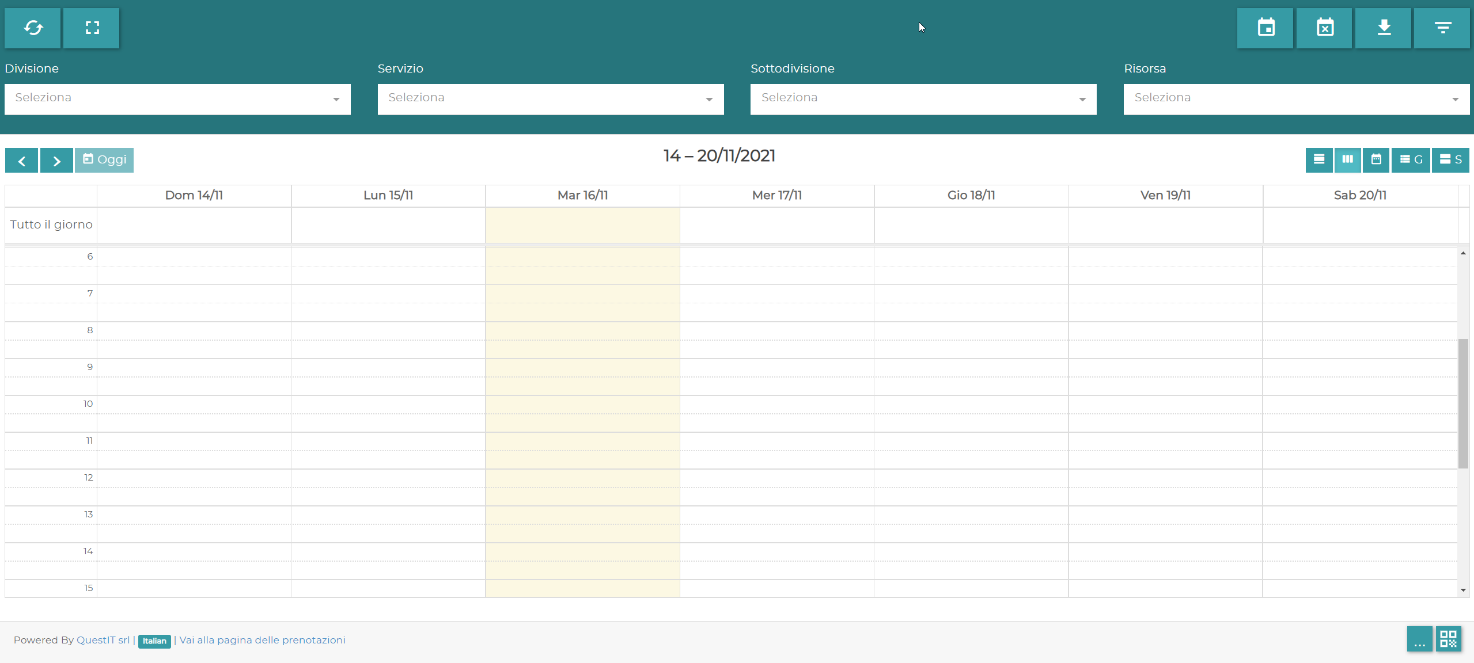
In the top right you can choose the Day, Week, Month, Agenda (Day) or Agenda (Week) view.
The available actions let you create a booking, add an unavailability, export the calendar and apply filters.
Creating a booking

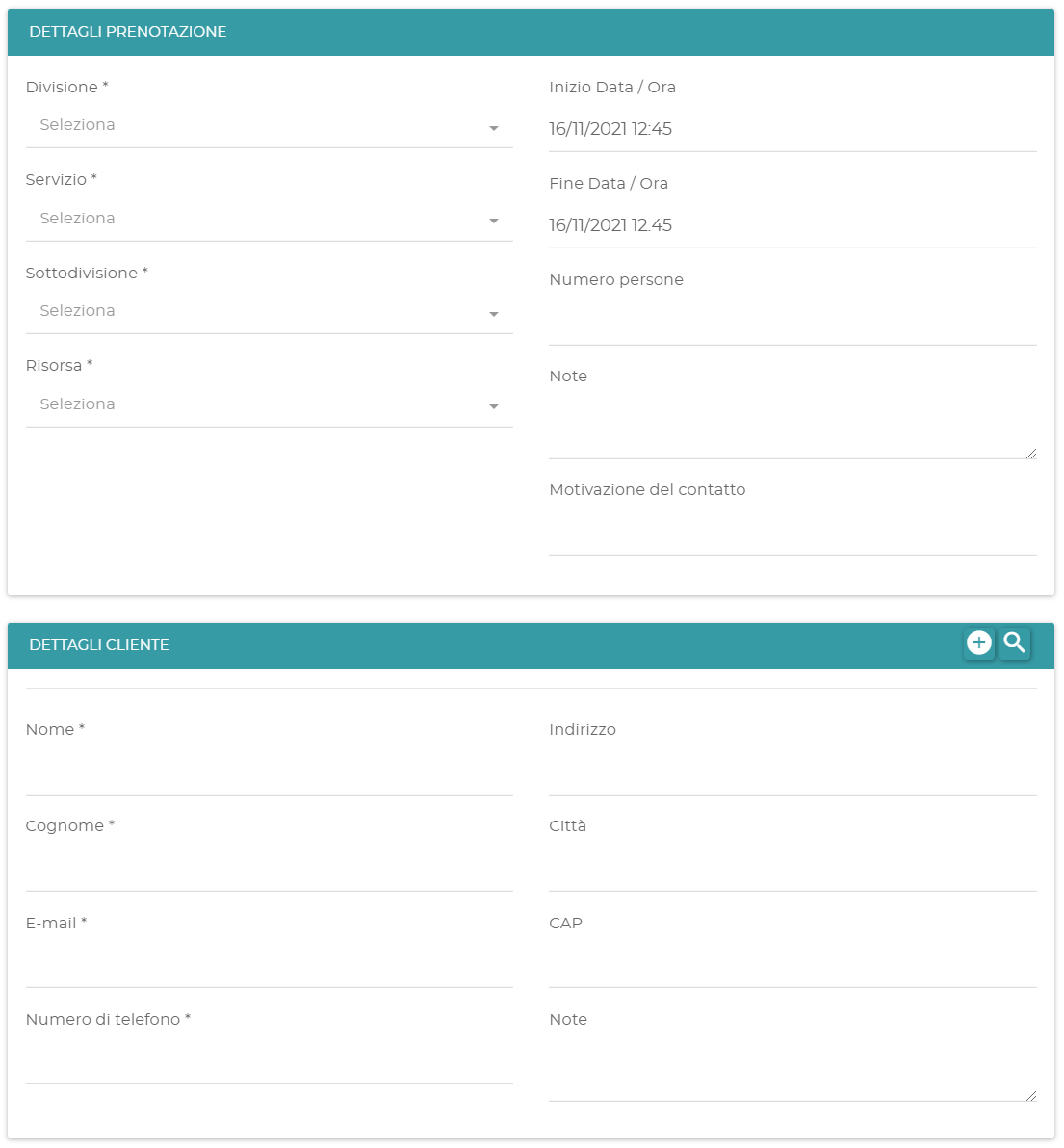
Select the action to create a booking and enter the user's details. Fields marked with an asterisk are required.
If the selected slot has no available Resources, Booking shows a warning but still lets you proceed. Alternatively, select Go to the booking page to use the form intended for users.
Modifying a booking

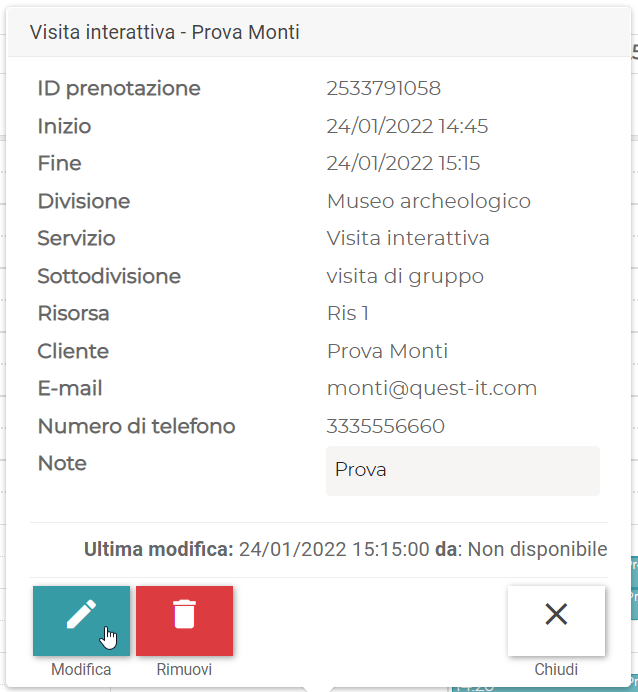
Click the booking and select Edit. You can modify the same data available during creation and add the Reason for change, which is included in the email sent to the user.
For appointments that have already ended, you can indicate whether the user showed up.
Adding an unavailability
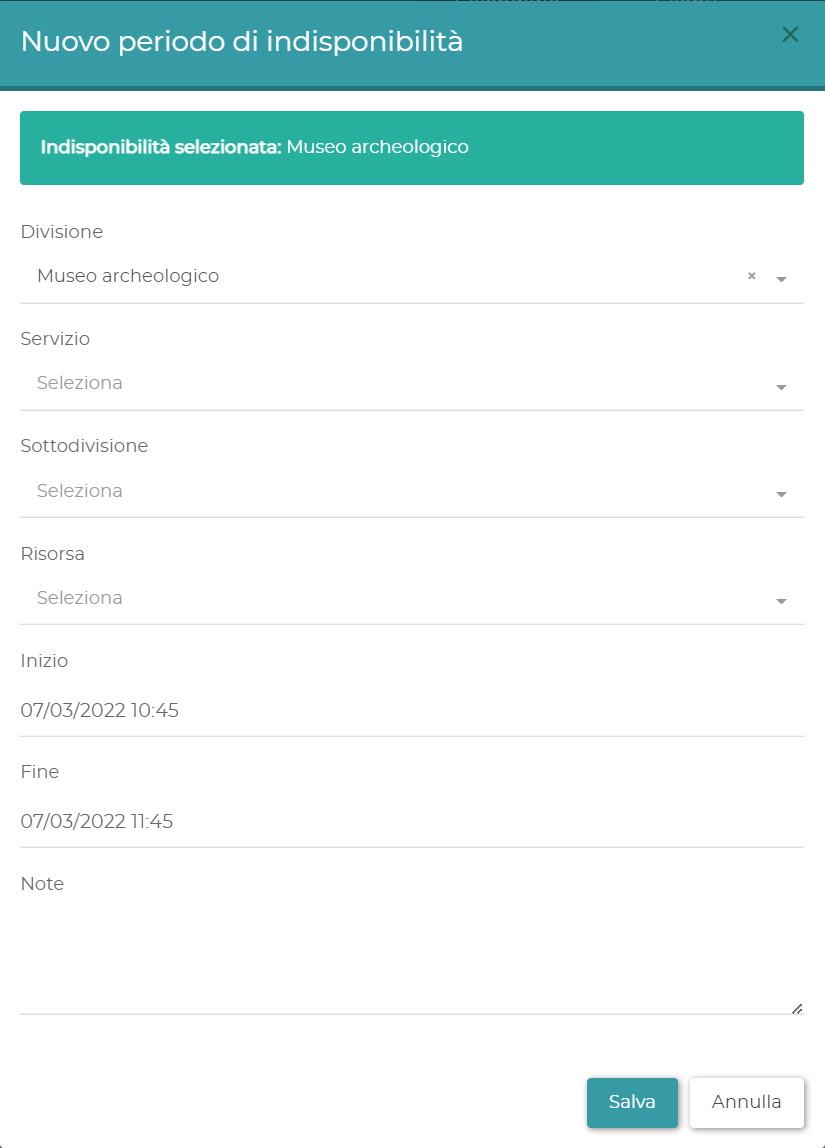
During an Unavailability period, Booking does not accept new appointments. You can apply it to the whole Booking, a Division, a Subdivision, a Resource or a Service.
Unavailability is inherited by the items below. For example, an unavailability applied to a Division also applies to its Subdivisions, Resources and Services.
Enter the period and select Save. To modify or delete an existing unavailability, filter the calendar on the level it was assigned to.


Exporting the calendar
Select Show/Hide download options to export the calendar in Excel or CSV format. The export includes the bookings for the selected period and the data entered by users.
The export filter follows the current view. For example, with the Week view, the displayed week is exported.
