Connecting to the Algho Assistant
In this section
The Booking module is natively integrated with Algho. You can therefore create conversational booking forms without developing a custom integration.
Creating a Booking form

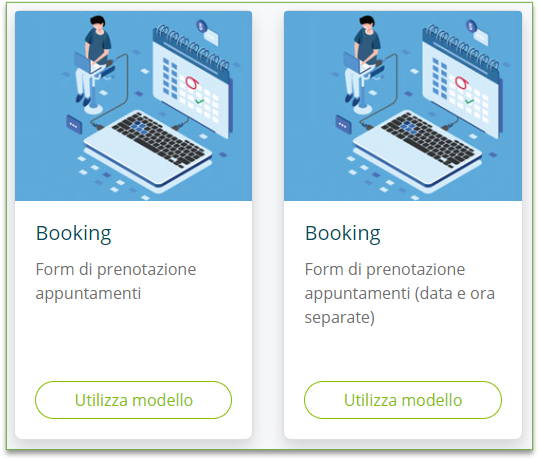
Open Create form > Template. The following are available:
- Appointment booking form, which offers date and time together;
- Appointment booking form: separate date and time, which offers date and time in two steps.
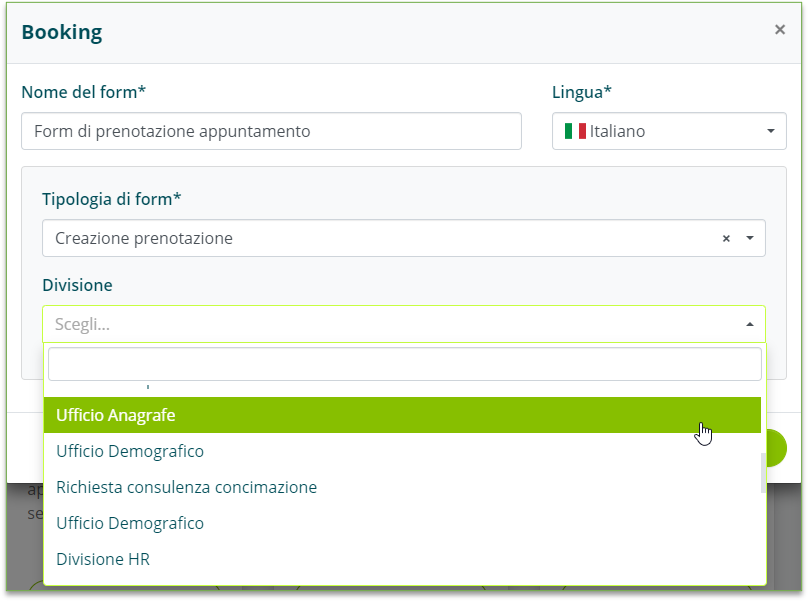
Select Use template and configure name, language, form type and Division.
The available types are Booking creation, Booking cancellation, Booking modification and Booking status. The language must match that of the Assistant you will connect the form to.
Select Create form to generate the initial fields.
Configuring the fields
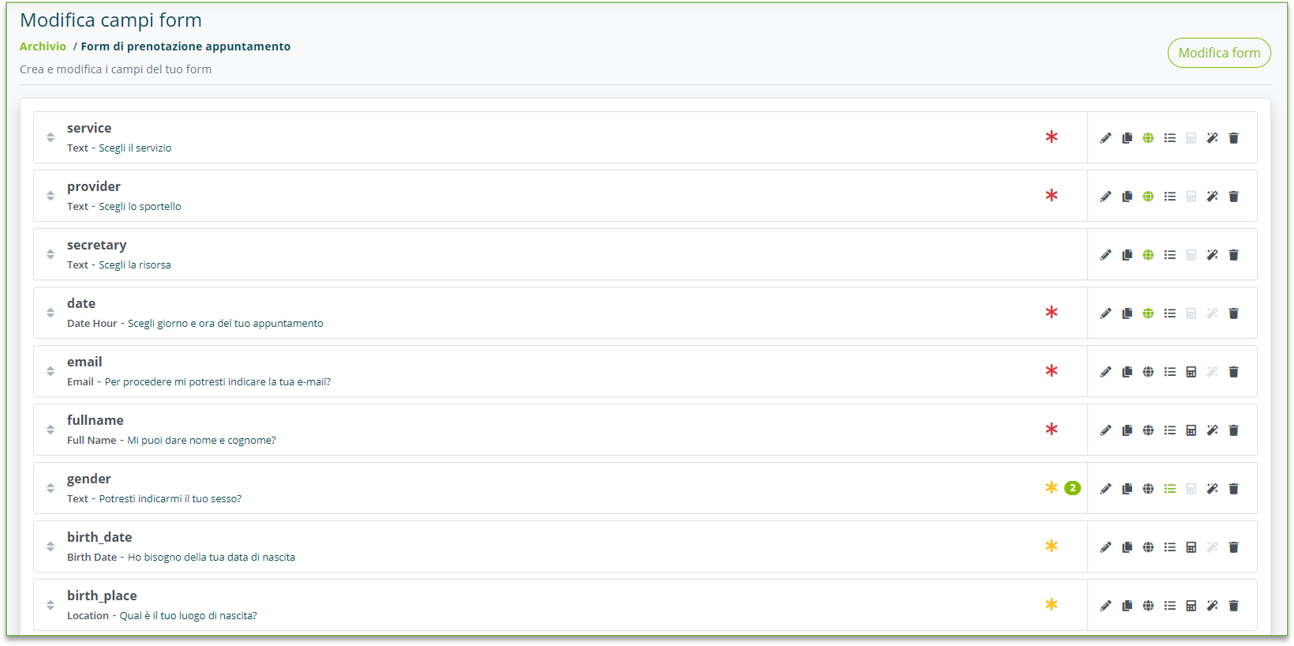
The built-in fields required for booking must not be deleted:
serviceprovidersecretarydateandhourwhen date and time are separateemailfullname
You can modify the question text in all fields. Unnecessary fields can be removed. You can also add other fields: the collected data is added to the Notes of the Booking reservation.
Select Save when the configuration is complete.
Connecting the form to the assistant
Connect the form to a question in the Knowledge Base to let the user start the procedure. For more information, see Conversational Forms.
Usage tips
Booking forms are created based on Divisions. If you have multiple Divisions, you may need to create a form for each of them.
To avoid the user having to know this internal organization, create a filter form that guides them to the correct booking form.