Booking Settings
In this section
The Booking module Settings define the company details, the behavior of the booking system and the communications sent to users. To access them, select Settings in the top bar.
General settings

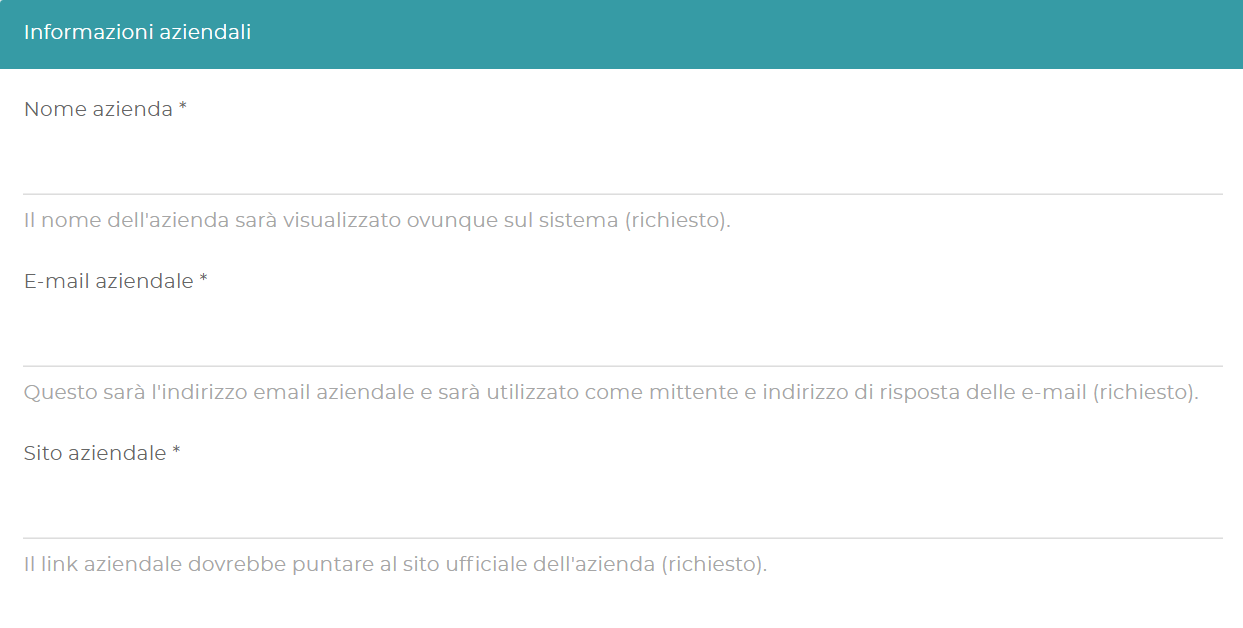
The Company information section contains the company name, email address and website. All three fields are required.
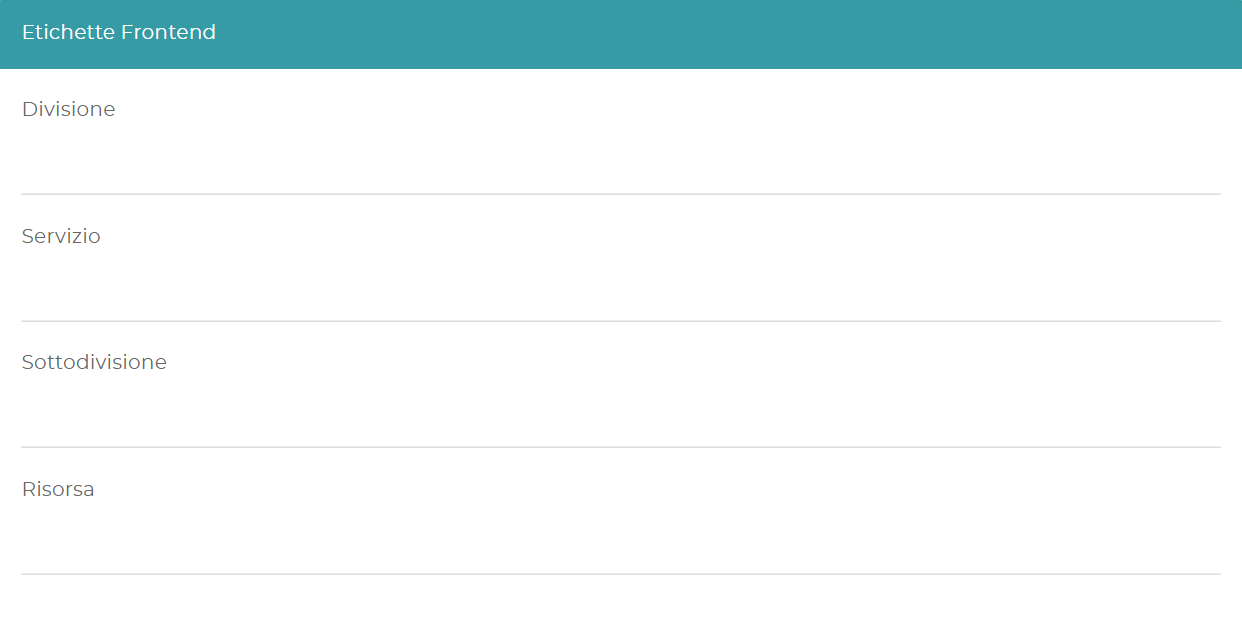
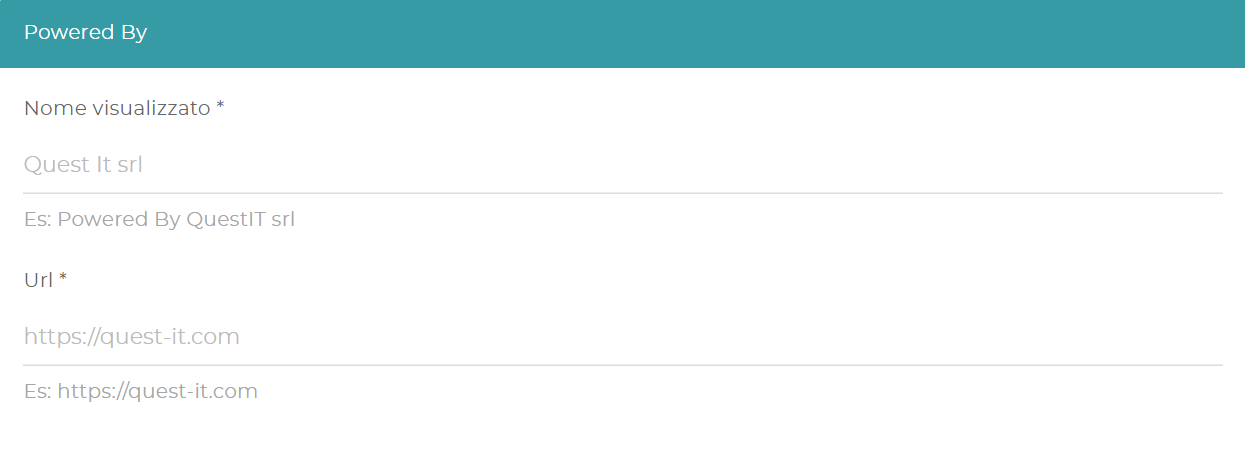
In Frontend labels you can customize the names shown to users for Divisions, Subdivisions, Services and Resources. The Powered by section lets you customize the credits of the booking service.
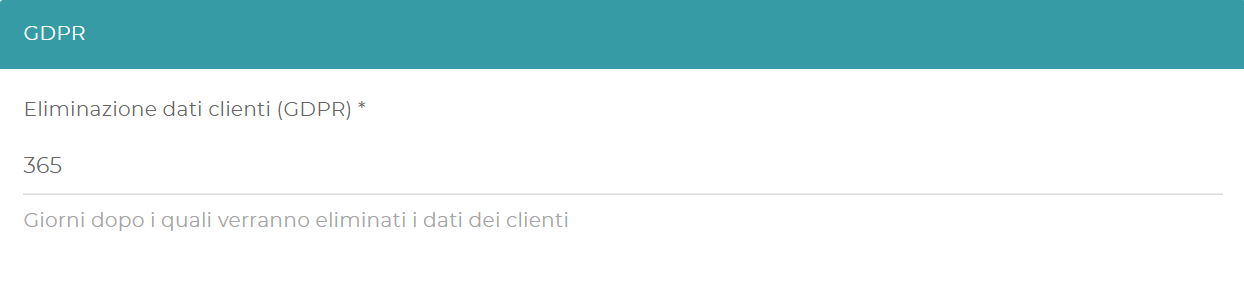
The GDPR setting determines after how many days customer data is automatically deleted.
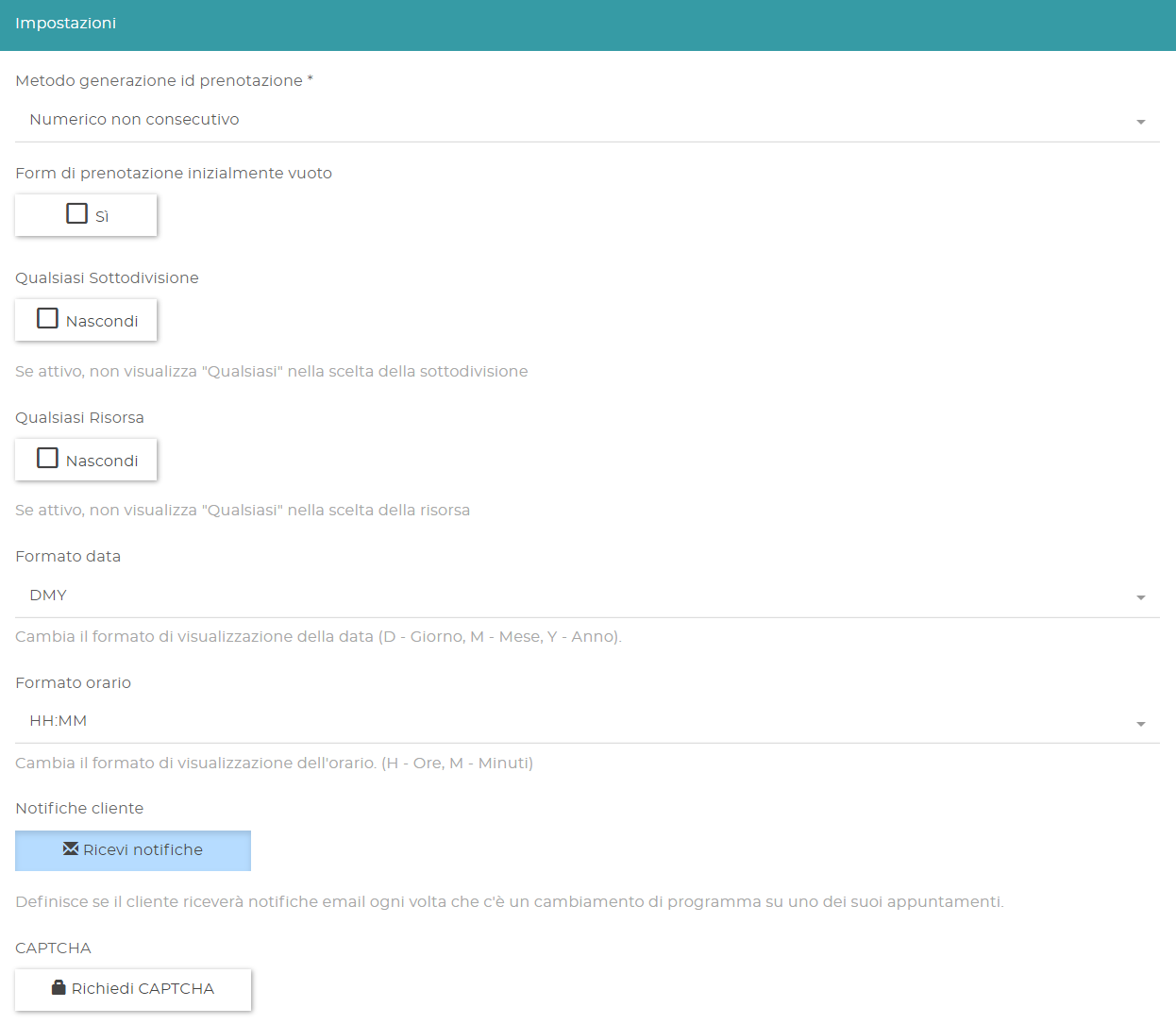
In the Settings section you can configure:
- the booking ID format: consecutive numeric, non-consecutive numeric or alphanumeric;
- the prefilling of the booking form fields;
- the date and time format;
- sending an email when a booking is modified;
- requiring a CAPTCHA during booking.
Select Save in the top right to apply the changes.
Logo and integrations

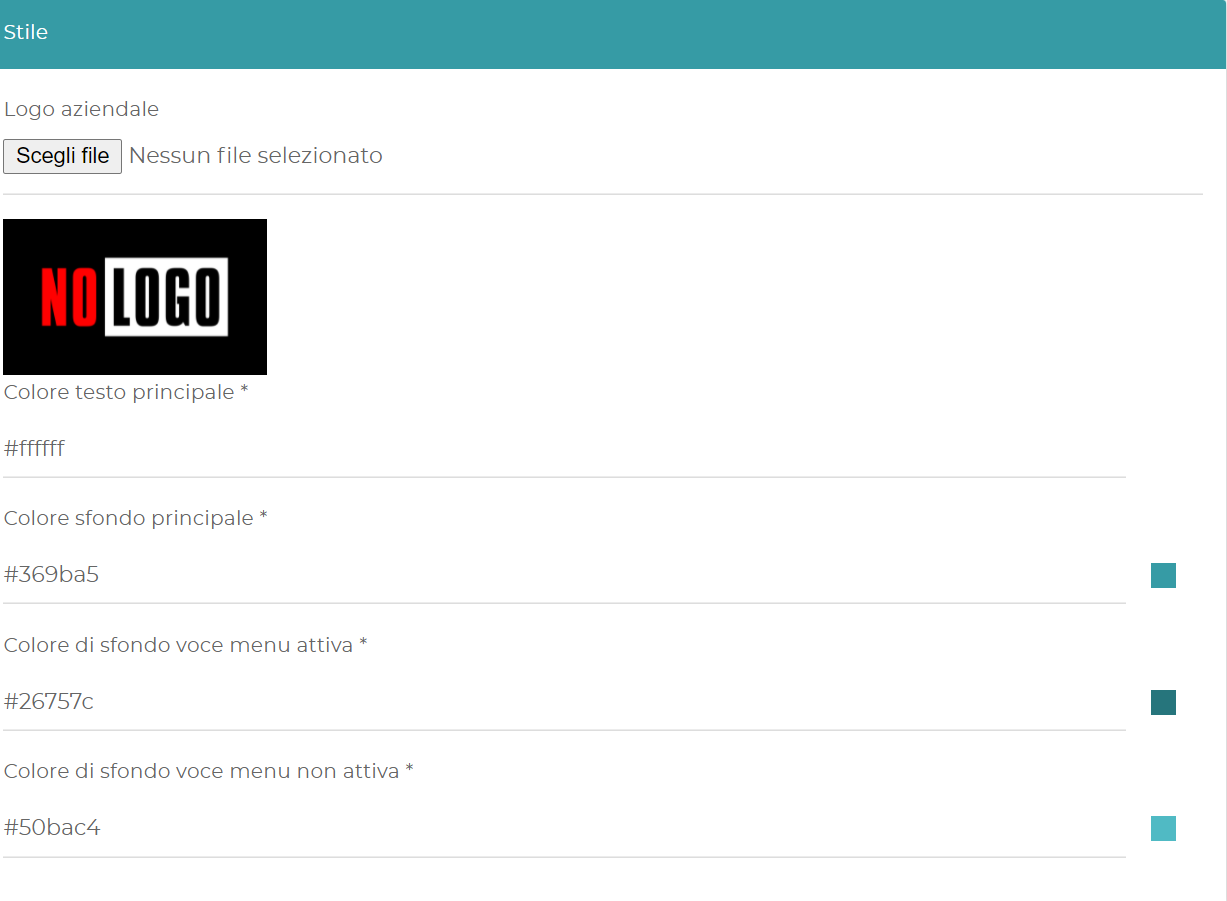
The Style section lets you customize the company logo and the main back-end and front-end colors: text, background, active menu item and menu item on hover.
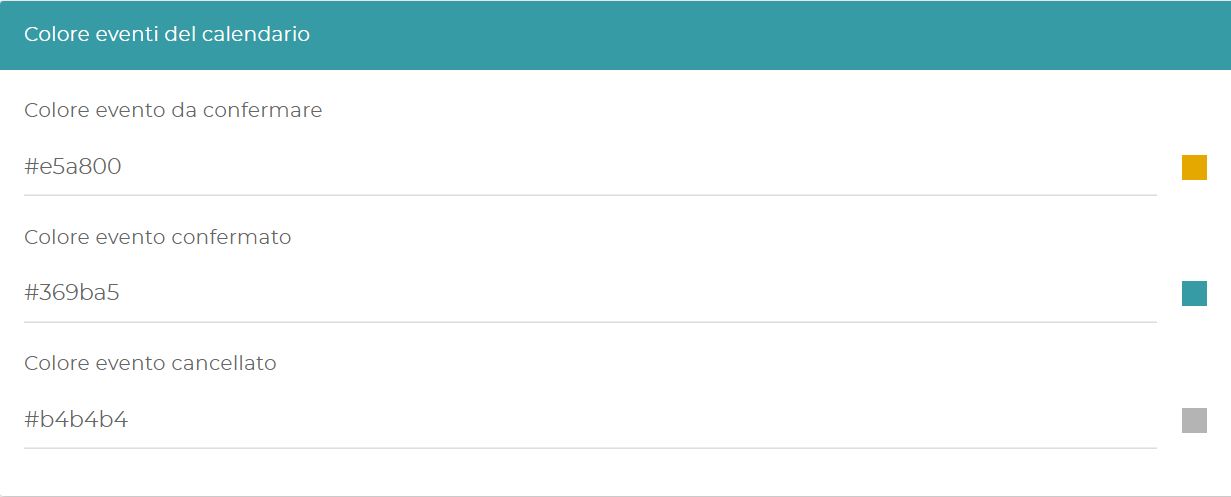
In Calendar event color you can define the colors of appointments to be confirmed, confirmed and cancelled. The color set at general level can be overridden in the configuration of an individual Service.
Reports
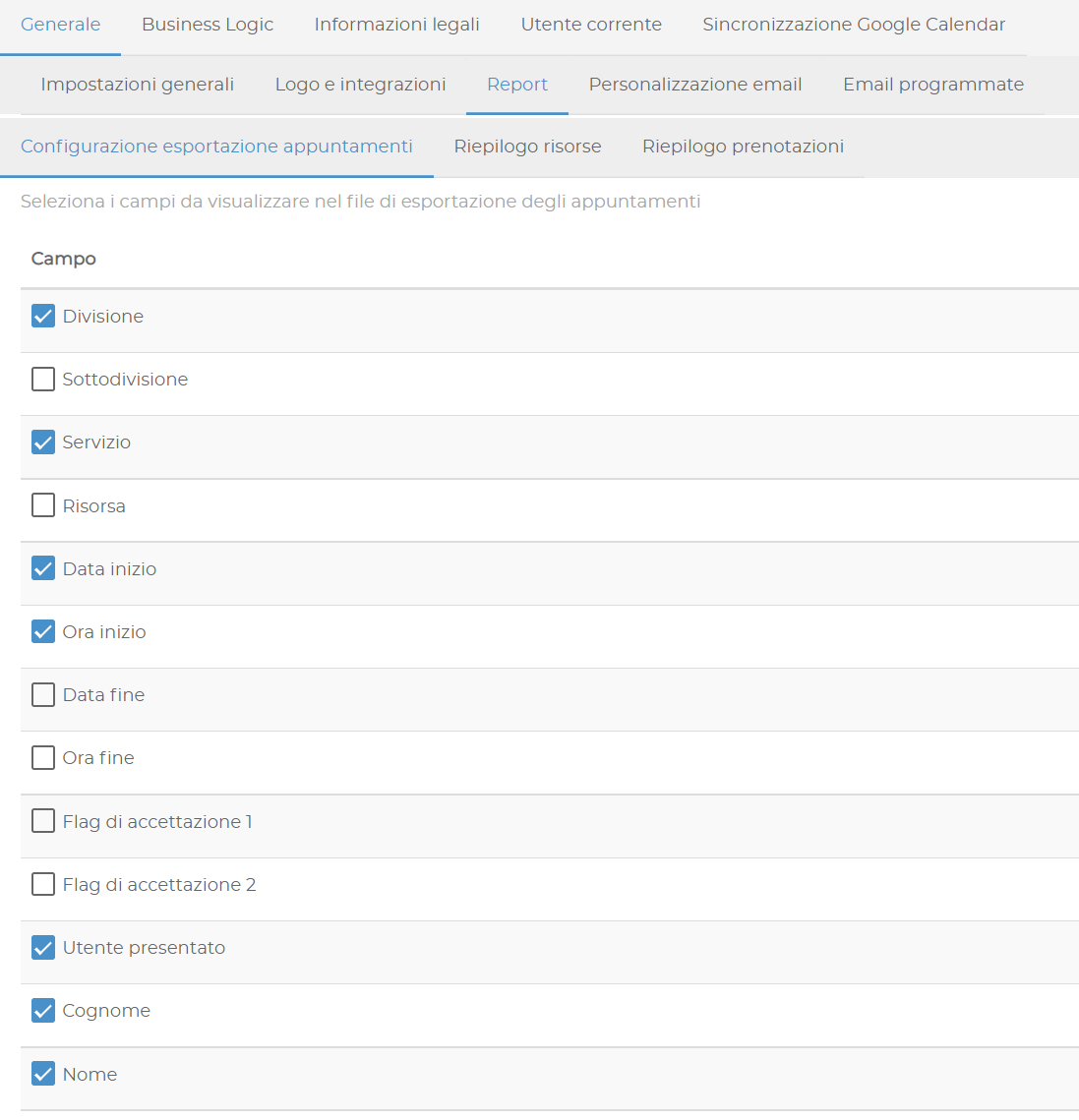
Appointment export configuration determines which data entered by users is included in the reports.
Resource summary sends every day at 00:00 a summary of the number of bookings, grouped by Division, Subdivision and Resource.
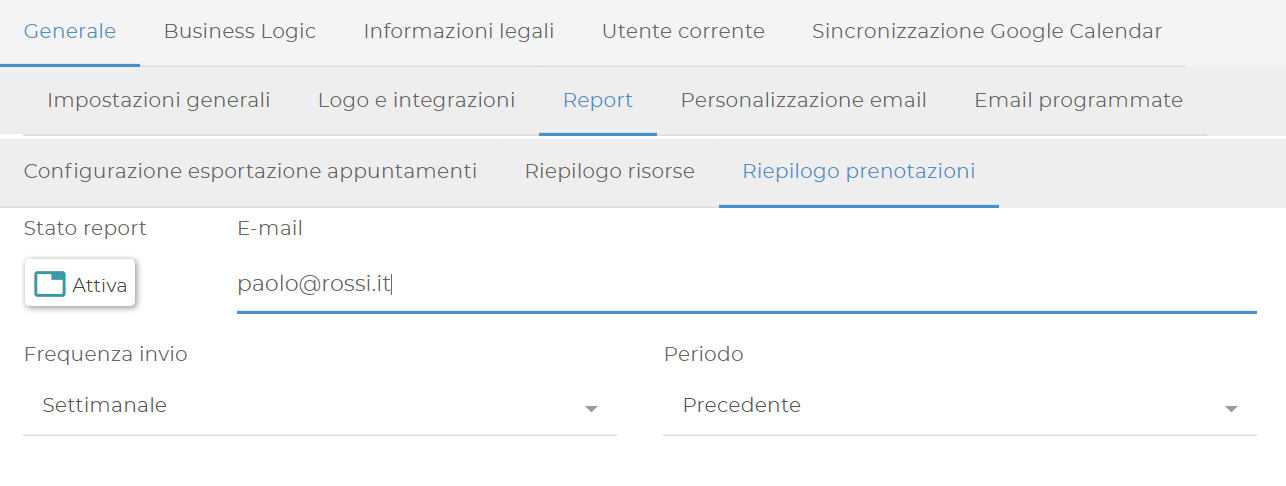
Booking summary sends a list of the bookings for the selected period. You can choose a daily, weekly or monthly interval, referring to the previous, current or next period. Email addresses can be separated by a comma.
Email customization
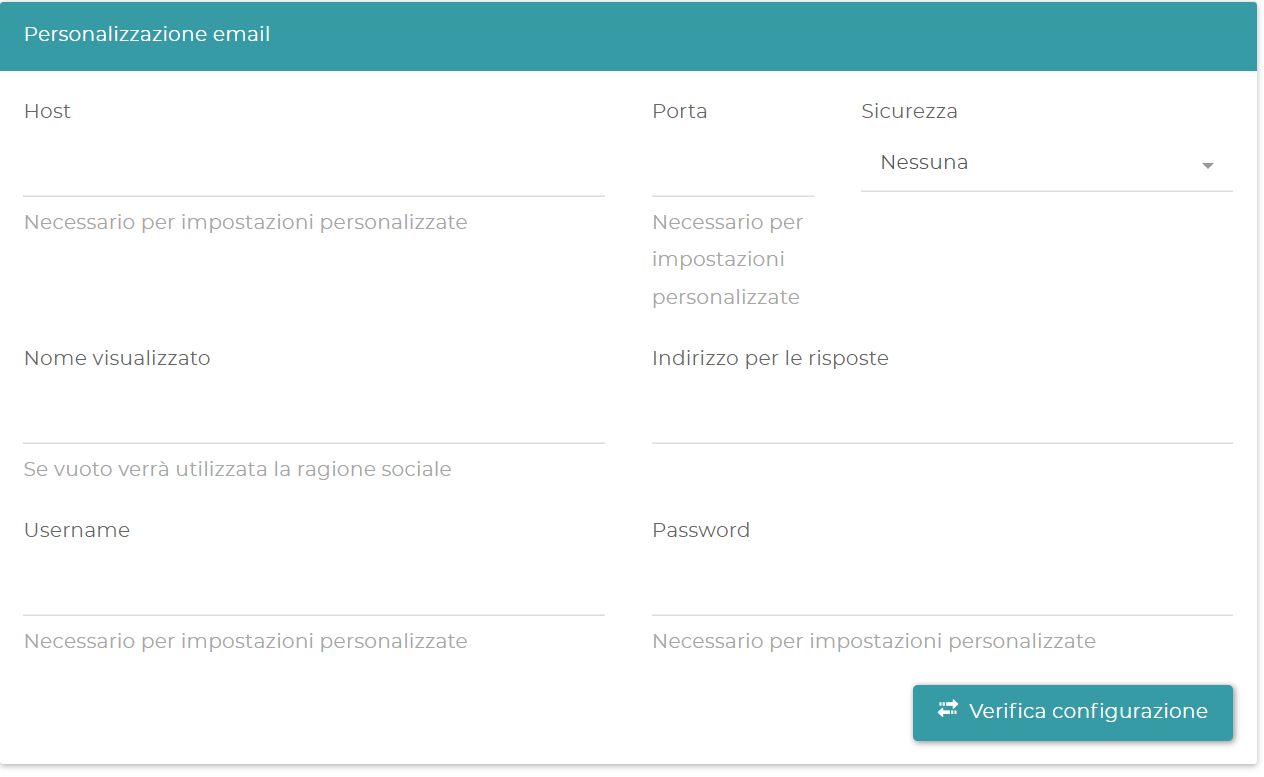
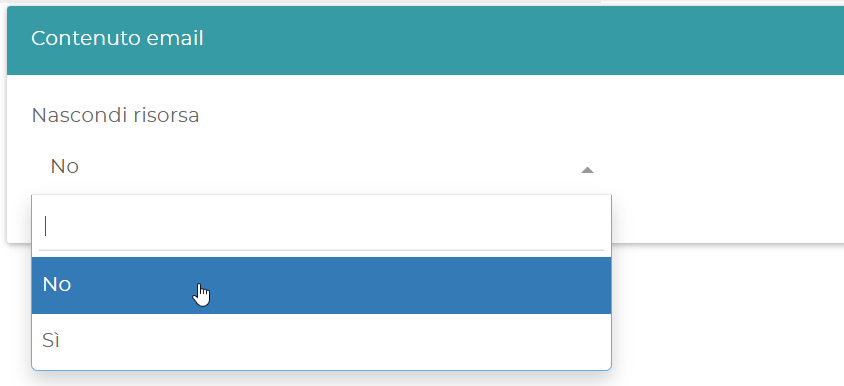
The Email customization section lets you configure the emails sent to users who make a booking. You can also choose whether to show the name of the booked Resource in the confirmation.
Scheduled emails
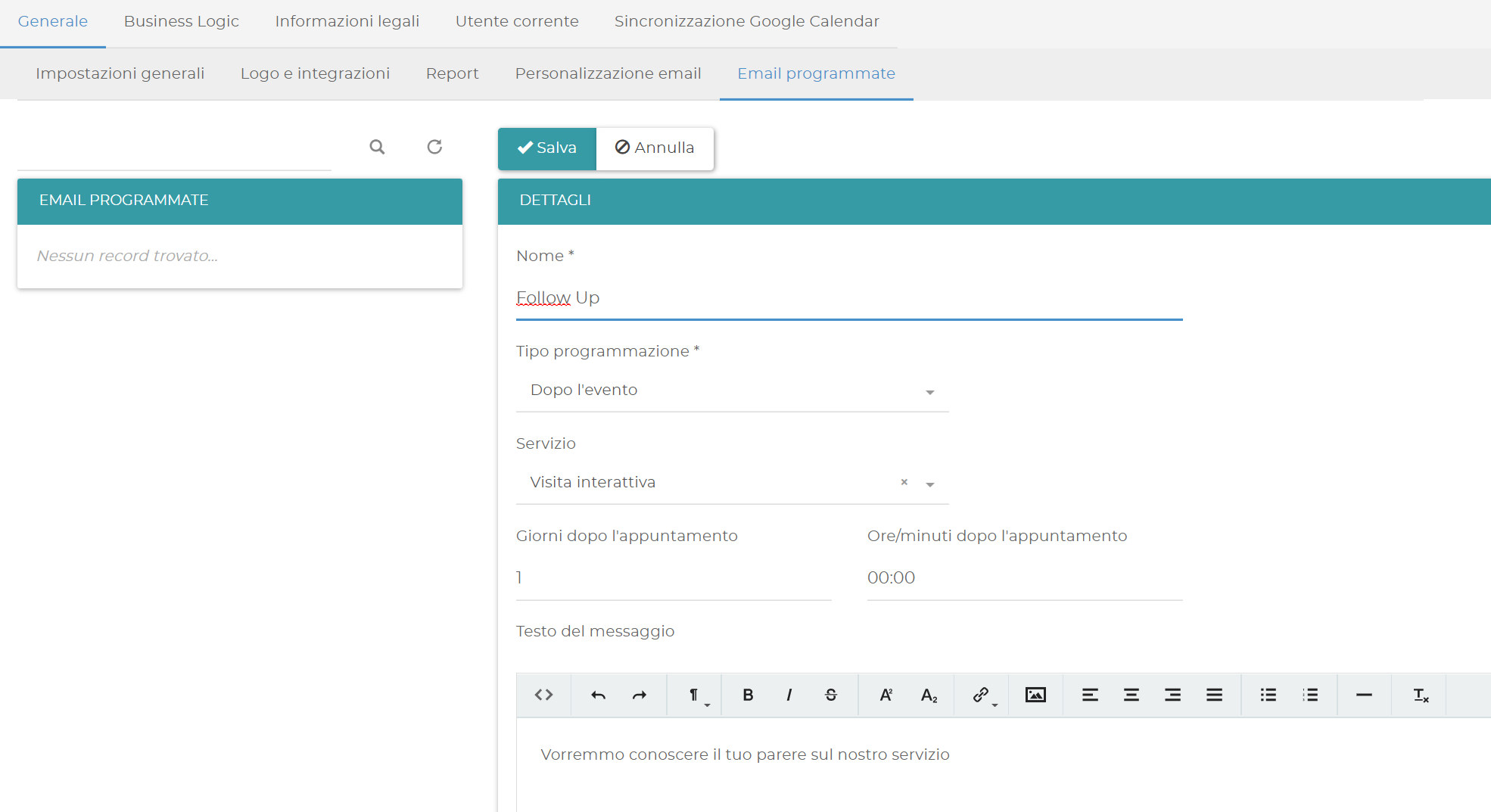
Scheduled emails let you send reminders before the appointment and follow-up messages after the service has been delivered. For each email you can specify how many days and hours before or after it is sent, and customize the text.
You can create messages specific to a Service. If you do not specify a Service, the message applies to all bookings.
Business Logic
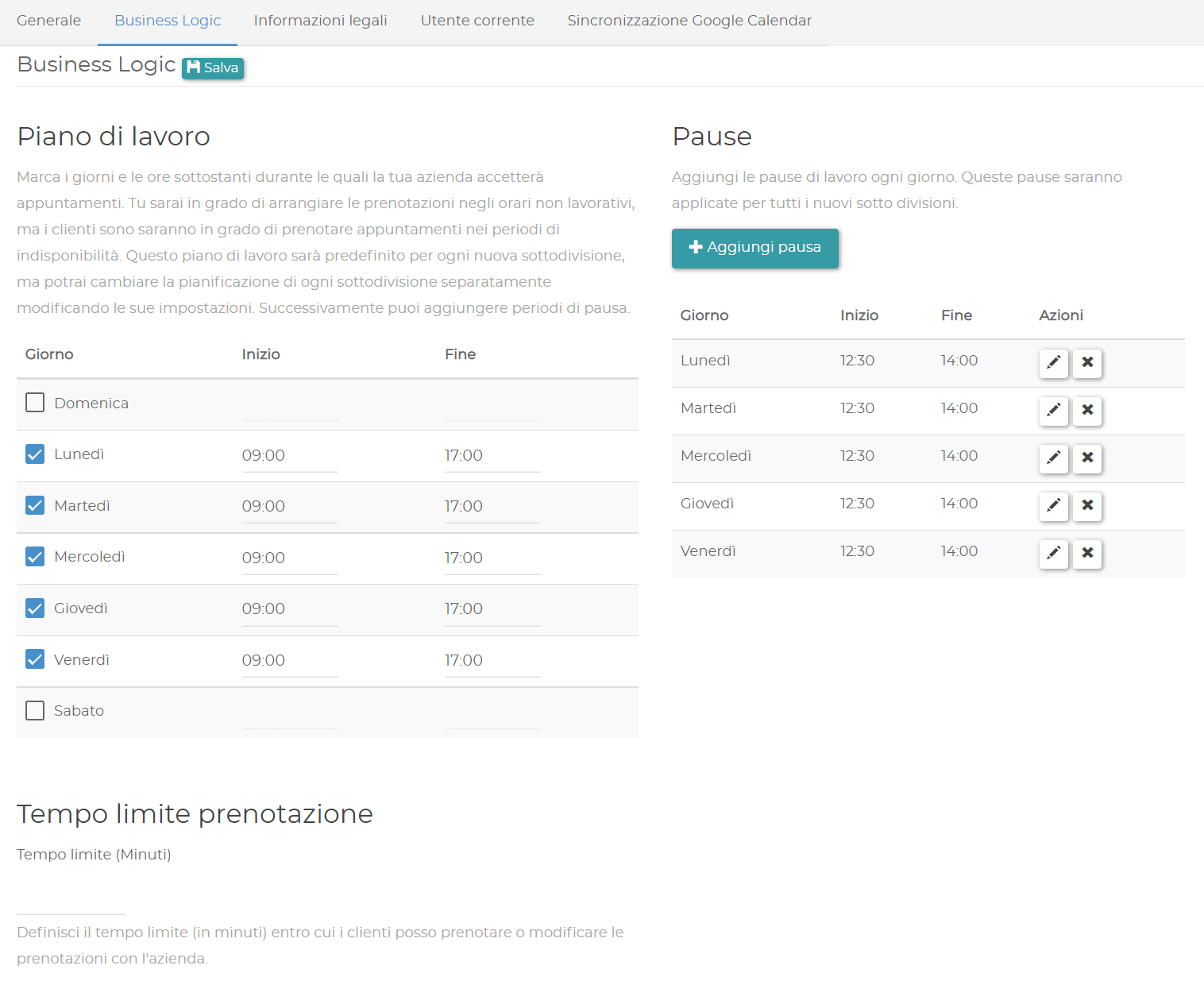
In Business Logic you define the default Work plan: the days, hours and breaks during which the system accepts bookings. The plan is assigned to new Subdivisions and can be modified locally.
The Booking time limit indicates how much time must pass between the moment of the request and the first available slot. For example, with a 30-minute limit and a request at 12:15, the first available slot will be from 12:45.
Legal information and current user
In Legal information you can enter information about cookies, privacy policy and terms and conditions.
The Current user section contains the details of the Booking administrator.
Google Calendar synchronization
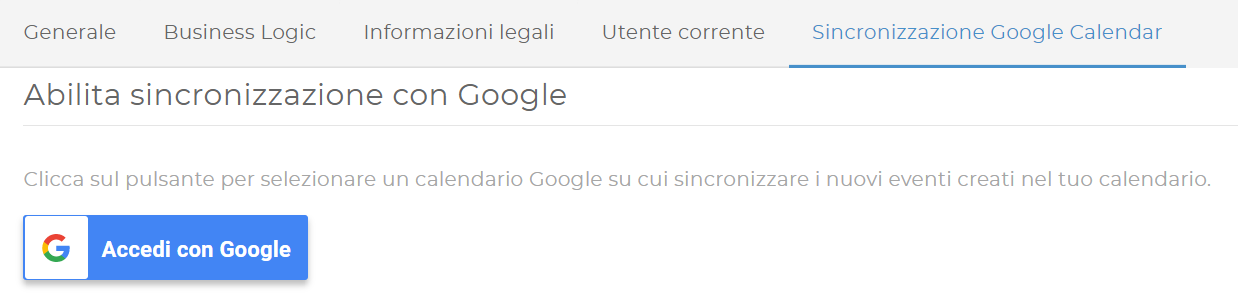
Google Calendar synchronization connects Booking to a Google Calendar account. You can then associate specific calendars with Divisions, Subdivisions and Resources (see Users, Divisions and Resources).
The synchronization includes existing bookings starting from the connection date. New bookings, changes and cancellations are synchronized in both directions.
You cannot create new bookings directly from Google Calendar. Bookings must be made through Booking.