Smart Document Crawler
Within Smart Document Access, you can configure the crawler to index the content of a website.
The crawler operates in three distinct phases: a first link navigation phase, which maps the site structure, a second content extraction phase, which identifies useful content, and a third PDF conversion phase, which generates indexed documents.
1. Link navigation
The crawler follows internal site links and maps the structure, without extracting content.
2. Content extraction
Navigated pages are analyzed to identify useful content.
3. PDF conversion
Extracted content is converted into indexed PDF documents. If a page contains no extractable content, no document is generated.
A page can only be extracted if it was visited during the navigation phase. Make sure the Addresses to include in the Navigation section cover all pages of interest.
Activation and structure creation
Inside an already created subfolder, select the Configure Smart Crawler option.

Enable the Enable on subfolder toggle.
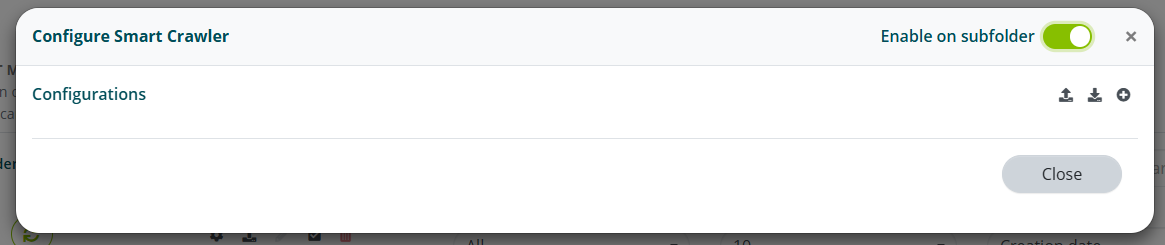
Select Add configuration.

Assign a name to the configuration and select Save.
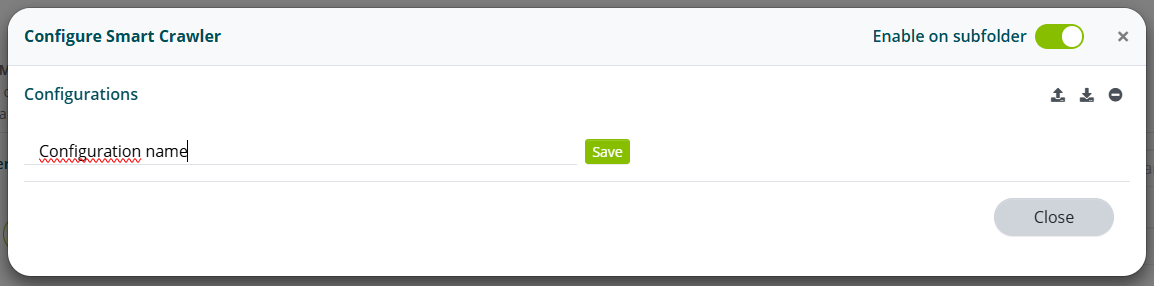
At this stage you can import previously downloaded configurations or download existing ones.
Setting up the Crawler
Selecting Edit fields opens the Crawler configuration.
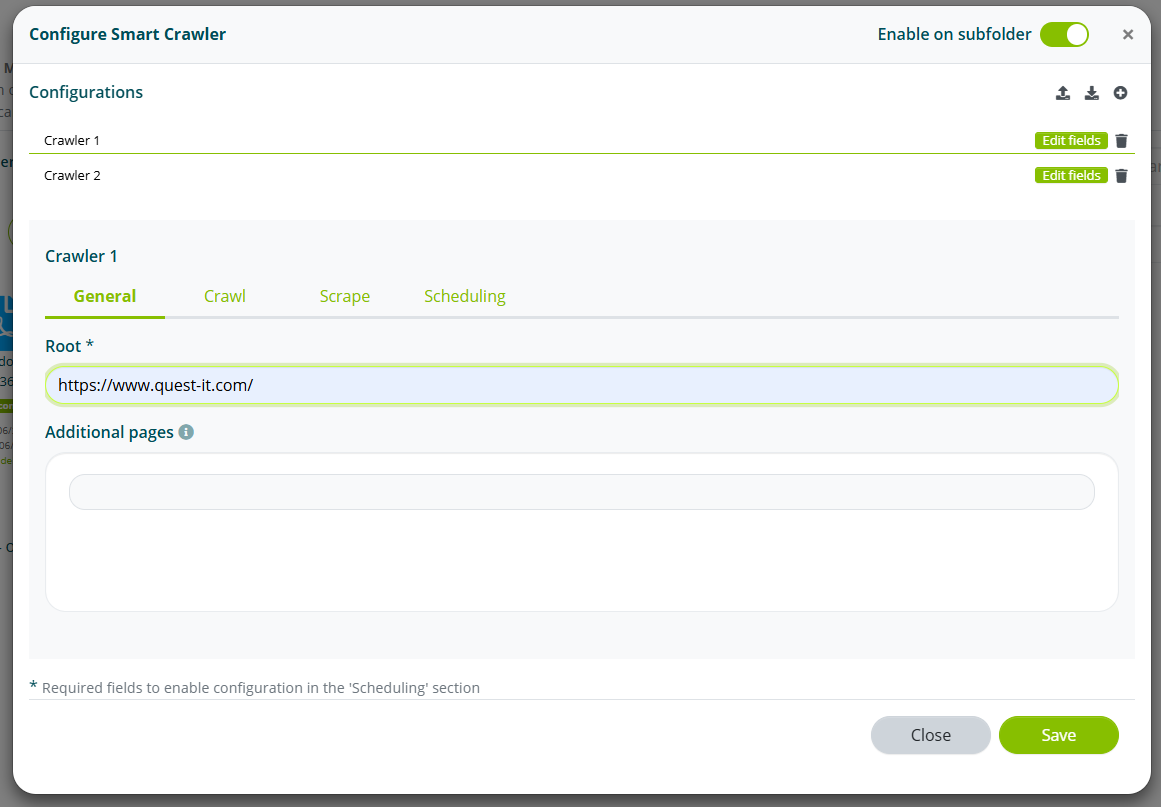
General
Enter the starting URL of the site in the Address field.
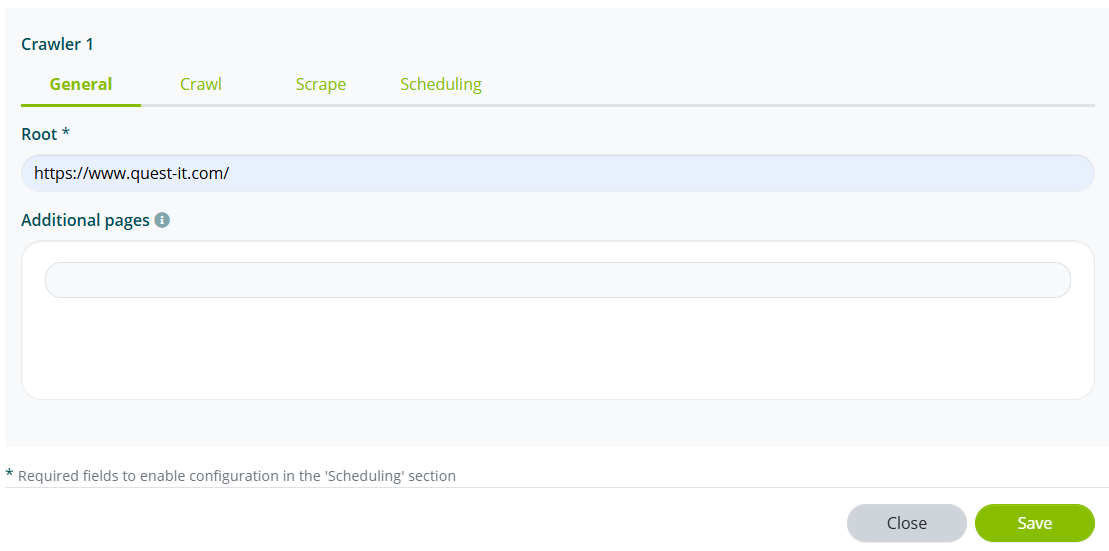
Add other URLs in Additional pages if necessary.
Navigation
Enable the Exclude off-domain sites option to limit navigation to links within the main domain.
Enable the Include PDF, doc, docx documents option to also navigate documents attached to web pages.
In the Addresses to include field, enter the list of pages to navigate.
In the Addresses to exclude field, enter the list of pages to avoid.
Both fields accept regular expressions (regex) to define URL patterns. Before creating regex, it is useful to analyze the site's path structure: path segments reveal page categorization.
Example — site structure:
example.com/use-cases
example.com/products/algho
example.com/products/sda
example.com/products/booking
example.com/products/pricing
example.com/blog/first-post
example.com/docs/getting-started
example.com/docs/getting-started-api
example.com/about
example.com/contact
Main pattern types:
| Pattern | Example | Matched URLs |
|---|---|---|
| Exact match | https://example.com/use-cases | example.com/use-cases |
| Alternation | https://example.com/products/((algho)|(sda)|(booking)) | example.com/products/algho, example.com/products/sda, example.com/products/booking |
Wildcard with .* | https://example.com/products/.* | example.com/products/algho, example.com/products/sda, example.com/products/booking, example.com/products/pricing |
| Shared prefix | https://example.com/docs/getting-.* | example.com/docs/getting-started, example.com/docs/getting-started-api |
The structure of each regex follows the schema: https://[domain]/[segment1]/[segment2]/...
| Component | Meaning |
|---|---|
https:// | HTTP or HTTPS protocol |
domain | Domain name |
.* | Any text (generic wildcard) |
(a|b|c) | Alternation: one of a, b, or c |
A regex should be tested against the entire set of site URLs, not just the known pages. This reveals false positives: unwanted pages that the regex captures anyway.
For example, https://example.com/products/.* captures both products/algho (desired) and products/pricing (false positive). If pricing is not desired, the alternation pattern is preferable.
Principles for choosing the best regex:
- Prefer simplicity: a short, readable regex is better than a complex one.
- Always test against the full crawl: a regex that works only on known pages is unreliable.
- Avoid overly generic regex:
https?://.*captures the entire site, which is not useful. - Consider future growth: a wildcard on a category will also capture pages added after the rule is defined.
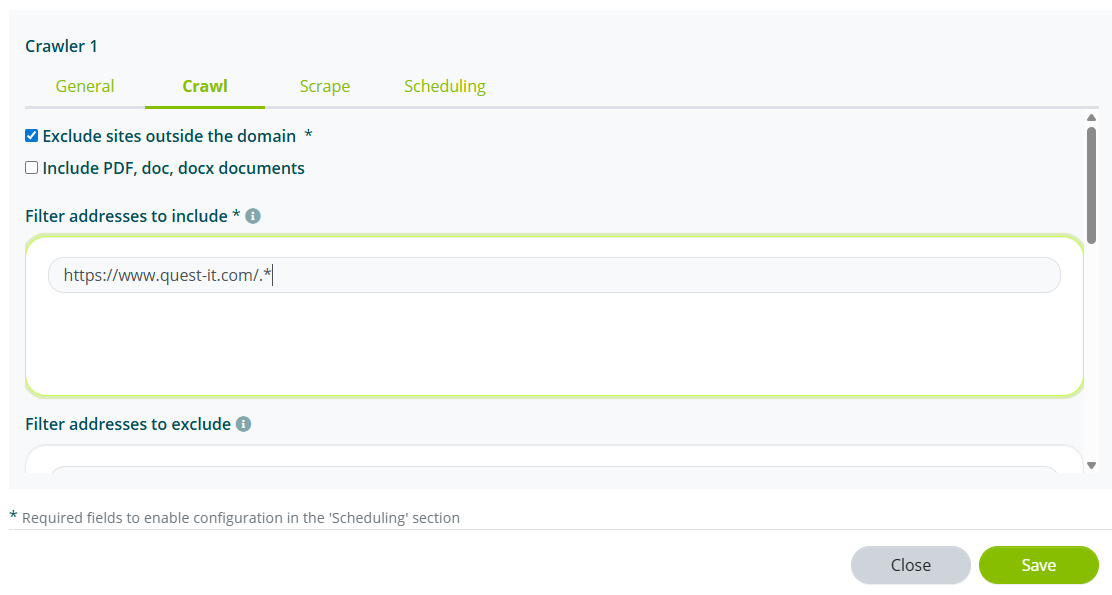
Set the maximum depth and the maximum number of pages to navigate.

Extraction
In the Extraction section, you configure the rules the Crawler will follow to transform web pages into documentation.
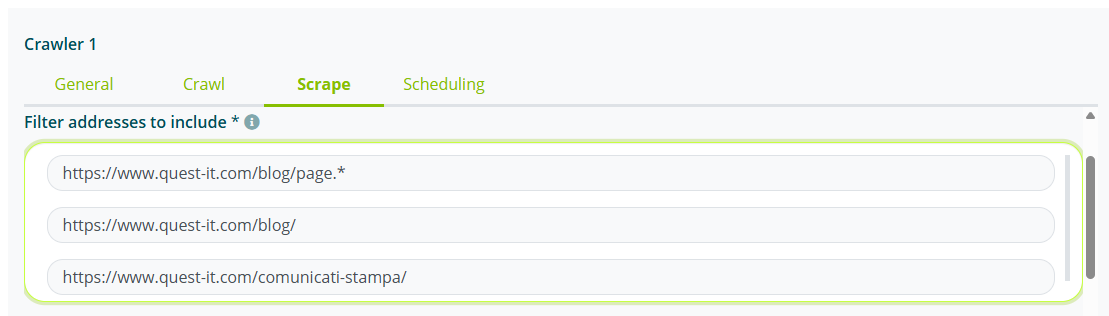
In the Filter addresses to include field, enter the list of pages to extract and convert into documentation.
Both fields accept the same regular expressions described in the Navigation section. The pages to extract can coincide with the pages to navigate or represent a specific subset.
In the Filter addresses to exclude field, enter the list of pages not to extract.
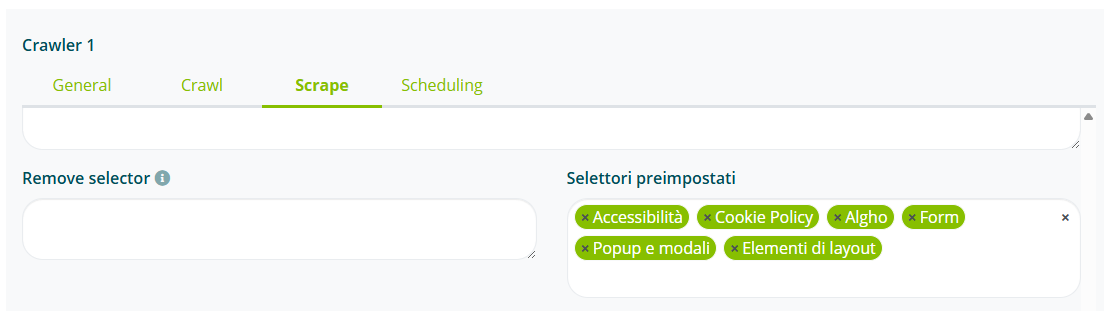
Add preset selectors in the Remove elements field.
Elements to remove before extraction can also be specified manually, by providing a CSS, XPATH, or Puppeteer-compatible selector.
Scheduling
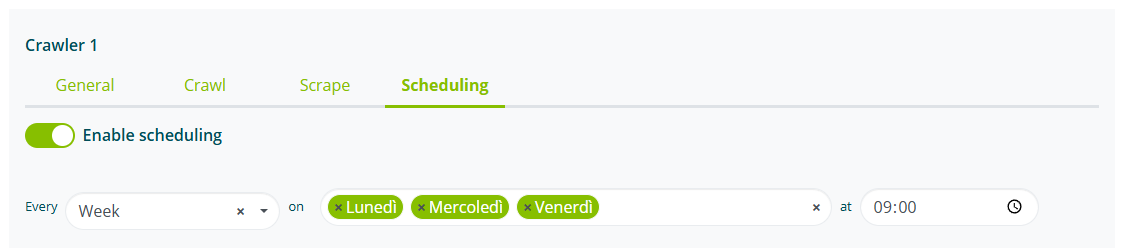
Select Enable scheduling and set the crawler execution frequency (weekly or monthly), then configure the day and start time; you can set multiple days of the week or month for repeated execution.
Viewing documents
To verify the PDF documents generated by the crawler, go back to the subfolder in Smart Document Access.
The list of indexed documents will be available in the section dedicated to the configured subfolder.
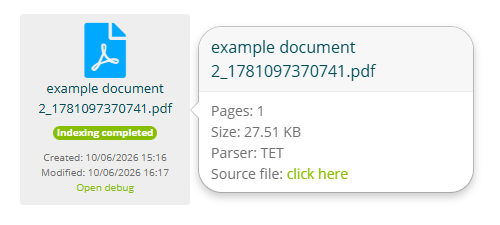
Each document has the URL from which it was generated associated as the Source file.